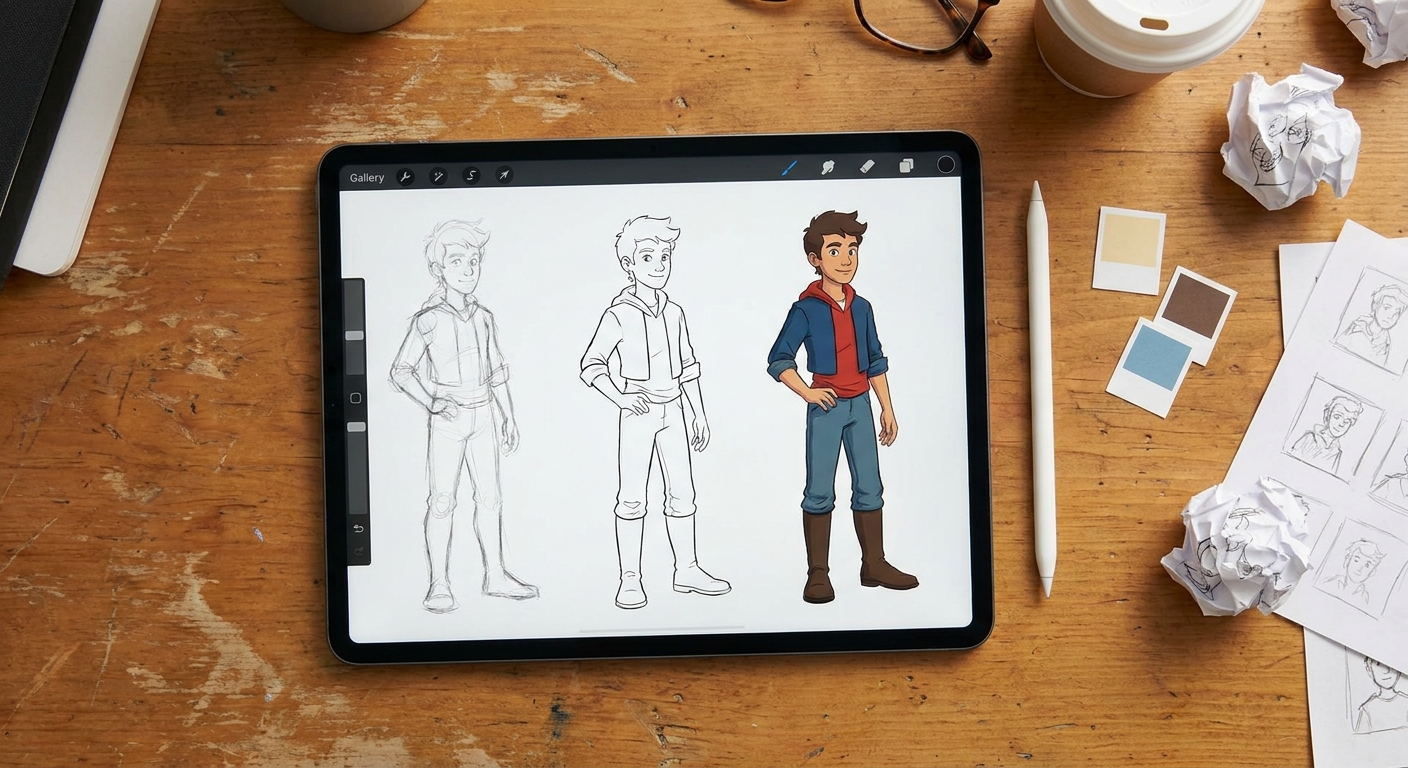
Spending 15 hours polishing one illustration can be satisfying—but it doesn’t always grow your skills as quickly as finishing three or four deliberate speed paintings.
Why Speed Painting Supercharges Your Procreate Skills
Speed painting forces you to:
- Prioritize composition over tiny details
- Make bold color and lighting choices
- Use Procreate’s tools efficiently
In this article, we’ll design a mini speed-painting “boot camp” inside Procreate, with timed exercises, brush setups, and visual frameworks. Think of it as a focused art class that fits into your lunch break.
1. The Rules of the Game: Constraints That Help You Grow
Before we paint, set some ground rules:
- Time-box everything. Use a timer: 10, 20, or 40 minutes.
- Limit your tools. 1–3 brushes max per exercise.
- Keep layers minimal. No more than 5–7 layers.
- No undo spam. Try not to hit undo more than twice in a row—paint over instead.
These constraints mimic traditional media, but with Procreate’s agility.
2. Speed-Painting Toolkit: Canvas, Brushes, and Palettes
A. Canvas Setup
- Size: 3000 × 2000 px (wide) or 2500 × 2500 px (square)
- DPI: 300
- Background: medium gray instead of white
B. Core Brush Trio
Put these in a custom set called SpeedPaint:
Block-In Brush – big, opaque shapes
- Start with Flat Brush (Painting → Flat Brush) or a hard round. - Opacity ~80–100%, minimal size jitter.
Soft Brush – gradients and soft shadows
- Airbrushing → Soft Brush. - Use low opacity (20–40%) for blending.
Detail Brush – edges and accents
- Inking → Studio Pen or your favorite small round. - Higher stabilization for clean edges.
C. Simple Color Palettes
Make 3–4 limited palettes as Palettes in Procreate:
- Warm Sunset: deep purple, magenta, warm orange, pale yellow
- Cool Night: navy, teal, desaturated violet, pale blue
- Forest: deep green, yellow-green, warm brown, muted sky blue
Limited palettes keep choices fast and cohesive.
3. Exercise 1 – 10-Minute Value Thumbnails
Focus: Composition and light, not color.
A. Set Up a 4-Panel Canvas
- Make a new canvas.
- Use the Selection (Rectangle) tool to divide your canvas into 4 equal panels.
- On a new layer, lightly draw panel borders.
B. One Brush, One Color
- Use your Block-In Brush.
- Choose a mid-gray for background.
- Use only black and white (adjustable via Color → Classic → Value slider) to paint.
C. 10 Minutes, 4 Scenes
Set a timer for 10 minutes. That’s ~2–3 minutes per panel.
Ideas:
- A mountain and lake scene
- A city street with one main light source
- A character under a spotlight
- An interior with a window light
Paint shapes, not objects:
- Big dark and light masses
- Clear focal point per panel
Stop when the timer ends, no matter what.
Goal: Learn to see and design value patterns quickly.
4. Exercise 2 – 20-Minute Color Studies from Photo Reference
Focus: Color and light interpretation.
A. Import a Reference Photo
- Tap Actions → Add → Insert a photo.
- Place photo on one side of the canvas.
- Lower its opacity or lock it, and work on a new layer beside it.
B. Block-In Workflow (First 10 Minutes)
- Use your Block-In Brush.
Squint at your photo and paint:
- Sky vs ground - Major buildings/trees/objects - Big shadow shapes
No detailing allowed in the first 10 minutes—only big shapes and rough colors.
C. Refinement (Next 10 Minutes)
Switch between Block-In and Soft Brush:
- Adjust edges (hard vs soft)
- Punch up contrast at the focal point
- Slightly stylize colors (push warm/cool contrast)
Stay zoomed out at 50% or further for most of this.
Tip: Use the Eyedropper (tap and hold) to sample colors from your photo—but feel free to push them warmer or cooler.
5. Exercise 3 – 30-Minute Character Speed Paint
Focus: Combining gesture, light, and basic rendering.
A. Quick Sketch (5 Minutes)
- On a low-opacity background, with a pencil brush, do a rough gesture and placement of your character.
- Emphasize line of action and big costume shapes.
B. Flat Color Block-In (5–10 Minutes)
- Create a new layer below sketch:
Flats. - On a single layer, block in skin, hair, clothing with your Block-In Brush.
Don’t worry about staying in the lines; just fill the right areas roughly.
C. Light and Shadow (10–15 Minutes)
- Add a new Clipping Mask layer above
Flats. - Set blend mode to Multiply.
- Paint shadows with your Soft Brush.
- Add a second Clipping Mask layer with Screen or Add for highlights.
Focus on:
- One clear light direction
- Simple shadow shapes on face and clothing
D. Detail Pass (Last Few Minutes)
Switch to your Detail Brush:
- Sharpen key edges (face, hands, important props)
- Add a couple of accents: rim light, catchlight in eyes, texture on clothing
Stop when the timer buzzes. Crop or frame the most successful part.
6. Visual Thinking: See in Big, Medium, Small
Throughout these exercises, keep this framework in mind:
- Big: composition, value groupings, major color blocks
- Medium: forms, folds, large shapes of light and dark
- Small: details, texture, tiny highlights
During speed painting:
- First 25–40% of your time = Big only
- Next 40–60% = Medium
- Final 10–20% = Small
If you’re fussing with eyelashes in minute 3, you’re skipping the important stages.
7. Using Procreate Tools to Cheat (Productively)
Speed paint is not about suffering—it’s about smart shortcuts.
A. Selection Shapes for Fast Design
Use Selection → Polygonal or Rectangle for
- Clean building edges
- Graphic light shapes on walls or floors
Fill these with ColorDrop, then soften edges slightly with your Soft Brush where needed.
B. Gradient Skies in Seconds
- Create a new layer for the sky.
Use Gradient Map (Adjustments → Gradient Map) or:
- Paint two rough bands of color (e.g., dark blue top, warm orange near horizon). - Blend with Soft Brush.
This frees time for more important storytelling elements.
C. Gaussian Blur for Depth
For distant elements:
- Merge or group your background pieces.
- Duplicate and merge the group to one layer.
- Use Adjustments → Gaussian Blur (3–8%).
Time saved on careful edge rendering can go into your focal point.
8. Reviewing Your Speed Paints Like a Teacher
After each session, don’t just close the file—critique it.
Ask:
Readability: Can you tell what’s happening at a glance?
2. Values: Does it work in grayscale? (Duplicate and desaturate to check.)
Focal Point: Is one area clearly the star?
Color: Is there a coherent main hue or temperature?
Mark your own work:
- Use a bright color on a new layer to circle strengths and note issues.
- Write 2–3 bullet points like a teacher’s feedback.
This reflection accelerates improvement more than polishing the painting itself.
9. Designing a 7-Day Procreate Speed-Paint Challenge
Here’s a simple plan you can repeat monthly.
Day 1 – Values Only (20 min)
- Four 5‑minute value thumbnails.
- Two 10‑minute landscape color studies.
- One 30‑minute character from imagination.
- A room corner or café scene, focusing on light.
- Paint three objects with different materials: metal, fabric, glass.
- One scene with a character + environment.
- Line up the week’s work in a single Procreate canvas.
- Annotate strengths and next steps.
Day 2 – Color Blocks (20 min)
Day 3 – Characters (30 min)
Day 4 – Interiors (20–30 min)
Day 5 – Materials (20 min)
Day 6 – Story Moment (40 min)
Day 7 – Review Day (20 min)
Each week you’ll build speed, intuition, and confidence—not by rushing, but by practicing deliberate focus with Procreate as your lab.
Speed painting isn’t about being sloppy. It’s about learning which decisions matter most and letting Procreate’s tools help you make them quickly, so you can carry that clarity into your longer, more polished pieces.